
Guide · Android
A phone lock for study hours on Android
The short answer
Make a study-hours schedule in MassBlocker (free): your distracting apps lock at the start and open again at the end, with nothing on the lock screen to end it early. Leave the apps you study with off the list.
 (opens in a new tab)
Free plan · no account needed · no ads
Published 9 October 2026
Start with what stays open
This guide is for university exams and professional exams, such as CA Inter/Final, CAT or UPSC. Before you block anything, decide what you study with, and keep those apps off your blocklist.
Keep open
- YouTube, if you study with lectures
- Your notes and documents
- Dictionary and calculator
- Your course or exam-prep app
- Calls and messages, if you need them
Lock during study hours
- Social feeds
- Short-video apps
- Games
- Anything you open without deciding to
MassBlocker blocks whole apps. It can’t block Shorts and keep YouTube’s lectures. If you study with an app, leave it unlocked, and use Gentle Nudge (below) if you want a pause before opening it.
Schedules
1. Lock your feeds during study hours (Free)
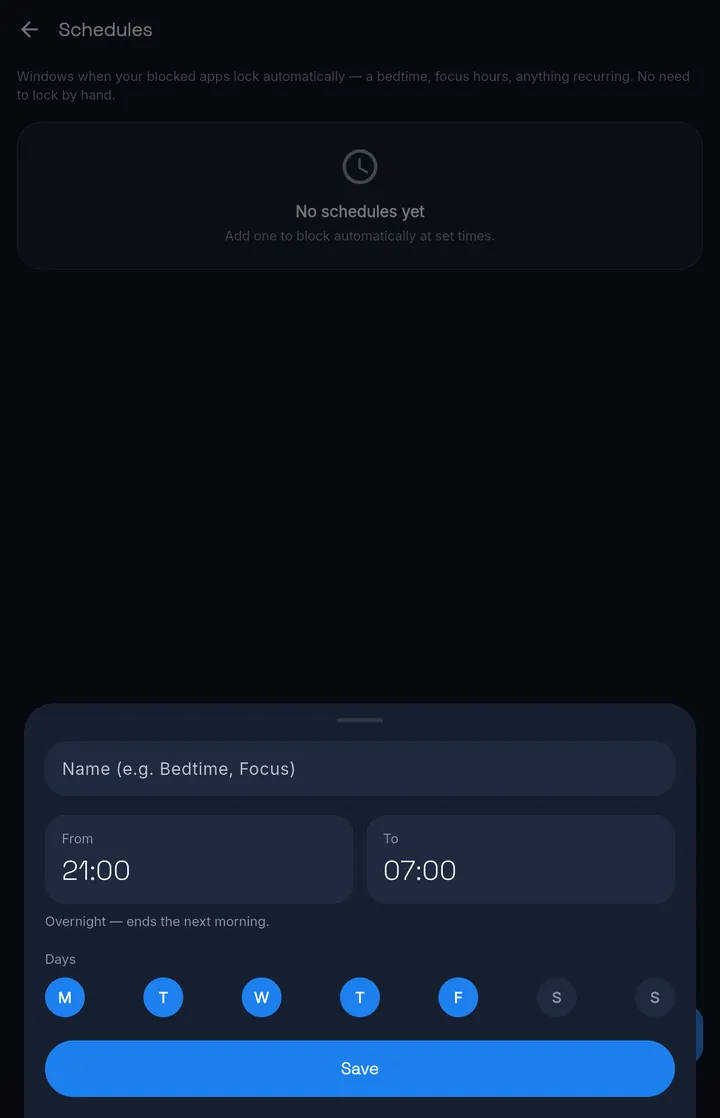
Open Blocked apps and tick the apps that pull you away from your desk. Then open Schedules and add a window.
Step 1: Name it
For example Study.
Step 2: Set From and To
For example 9 am to 1 pm.
Step 3: Pick the days and tap Save
For example Monday to Saturday.
Study in two blocks? Add a second window for the afternoon. Schedules are free, and you can add as many as you need. During a window, the apps on your blocklist lock by themselves. Nothing on the lock screen ends a window early; your apps open again when it ends.
Studying outside your usual hours?
Hide your QR code, set a minimum lock time in Unlock policy (the app calls it the cooldown) and tap Lock now. Your code opens the apps again only once that time is over.
Sharing one phone at home?
A lock covers the whole phone, for everyone who uses it. Keep your locks inside a schedule, so the phone works as normal outside your hours.
Gentle Nudge
2. A pause for the apps you want less of (Free)
Some apps you need, just less often. Gentle Nudge puts a calm pause in front of them and shows how many times you’ve reached for the app today. “Not now” takes you back. “Open anyway” lets you in.
It suits YouTube in exam weeks: set it to nudge only after a few opens a day, so a lecture doesn’t start with a pause every time.
- Its own list of apps, separate from your locks.
- Nudge on every open, or only after a few opens a day.
- Choose how long it waits before nudging again.
- If an app is also locked, the lock wins.
Strict mode
3. Hand the PIN to someone you live with (Pro)
On Free, or on Pro with strict mode off, you can still edit your blocklist and schedules during a lock, or delete a schedule halfway through a window. Strict mode closes that gap.
It puts MassBlocker’s settings, and ending a session, behind a PIN. Set the PIN, then give it to someone you live with: a flatmate, a partner, a sibling. Whoever holds it can open a lock you started at any time and change your schedules, so choose someone who will ask why.
Strict mode
ProYour blocklist, schedules and profiles need the PIN to change. So does ending a session.
The app’s own QR code and its 3-word code are switched off. Your PIN, or a QR you enrolled yourself, still works. So does an NFC tag or charger key.
Uninstall protection
ProBlocks the quick uninstall. Turning it off inside MassBlocker needs your PIN. It can still be switched off in Android Settings.
The honest limit
Strict mode is a strong deterrent, not an unbreakable jail — on stock Android a determined user can disable the service.
Profiles
4. An exam-season profile
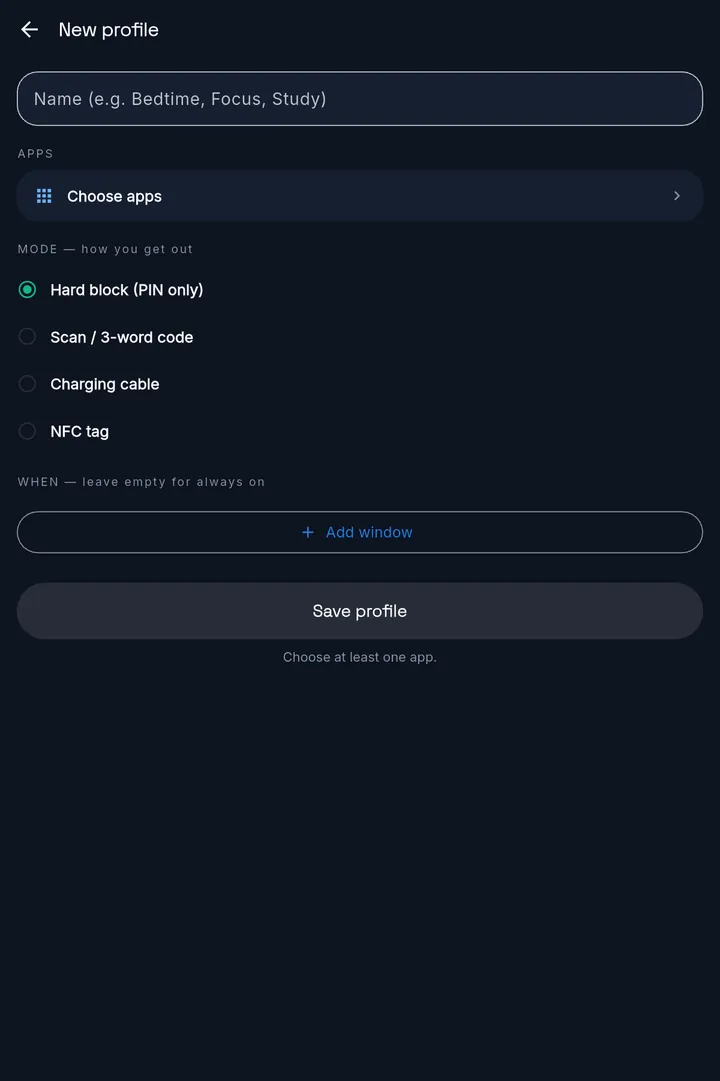
A profile is a set of apps with its own hours and its own way to unlock. Make one for exam weeks: switch it on when exams start, and off when they end.
Step 1: Open Profiles and tap New profile
Name it, for example Exam season.
Step 2: Choose apps
A wider list than usual, such as the games and video apps you allow yourself in a normal week.
Step 3: Pick the mode
The mode is how you get out.
Step 4: Add windows for your study hours
Or leave them empty and the profile is always on.
On Free
FreeYou get one profile, and it uses Scan. Scanning your code opens its apps straight away.
With Pro
ProRun as many profiles as you like, in any mode. Hard block (PIN only) has no scan, tag or charger unlock: pair it with a PIN someone else keeps.
Profiles don’t use the minimum lock time. A profile’s key opens its apps straight away; on a profile with set hours, they stay open until those hours end.
What it won’t do
Here is exactly where MassBlocker stops, so you can plan around it.
It blocks whole apps.
It can’t block Shorts inside YouTube, a feed inside an app, or websites.
It doesn’t measure screen time.
You get simple counters, like locks started and waits finished. No usage reports.
Without strict mode, settings stay open.
You can edit your blocklist, schedules and profiles during a lock. Strict mode (Pro) puts them behind a PIN.
It can be switched off.
Strict mode is a strong deterrent, not an unbreakable jail — on stock Android a determined user can disable the service.
It’s Android-only for now.
There’s no iPhone, computer or browser version.
Android · Free on Google Play
MassBlocker, the app in this guide
MassBlocker is an Android app blocker with a real-world unlock. To open a locked app, scan a QR code you hid, after a minimum lock time you set. Pro adds NFC tag and charger unlocks. Free plan, no ads.
(opens in a new tab)No ads.
Try Pro free for 7 days — no card. Sign in to start.
See everything MassBlocker doesKeep reading
Related guides
- How to block Instagram on AndroidWhole-app blocking, and Gentle Nudge if you use it for messages.Read the guide
- How to block TikTok on AndroidA bedtime schedule, and a charger key (Pro).Read the guide
- Make your blocker hard to uninstall, and know its limitsProUninstall protection, strict mode and a PIN someone else keeps.Read the guide
FAQ
Questions
Can I keep YouTube for lectures and block the rest?
Yes. Leave YouTube off your blocklist and it stays open during your study hours. MassBlocker blocks whole apps, so it can't block only Shorts and keep the lectures. If you want a pause before YouTube, use Gentle Nudge (Free) on it.
Can I end a study window early?
Not from the lock screen: nothing on it ends a schedule window early, and your apps open again when the window ends. Without strict mode, you can still edit or delete the schedule in the app. Strict mode (Pro) puts that behind a PIN, so give the PIN to someone you live with.
We share one phone at home. Will a lock affect everyone?
Yes. A lock covers the whole phone, not one person. On a shared phone, use a schedule so apps lock only during your study or work hours.
Does it track my screen time?
No. MassBlocker shows simple counters, like locks started and waits finished. There are no screen-time or usage reports.
Which languages is it in?
English, French, Spanish, Malay and Hindi. Pick one when you first open the app, and change it any time from the home screen.
Is MassBlocker free?
Yes. The Free plan locks the apps you choose, with QR code unlocks, schedules, Gentle Nudge, one profile and a daily limit on lock sessions. It needs no account and has no ads. Pro and Family add more ways to unlock and stricter controls.