
Guide · Android
How to block TikTok on Android
The short answer
To block TikTok on Android, use an app blocker whose key sits away from your phone. In MassBlocker (Free plan): pick TikTok, hide its QR code, choose a minimum lock time and tap Lock now. Add a bedtime schedule.
 (opens in a new tab)
Free plan · no account needed · no ads
Published 9 October 2026
Why a timer alone is easy to undo
A daily timer on TikTok feels firm until it runs out. Then the choice is yours again, and the way around it sits in Settings. Google’s help page says so plainly: to use the app again before midnight, delete the app timer.
The hard moment is rarely mid-afternoon. It’s late at night, in bed, with the phone in your hand. A limit you can lift from the same bed is easiest to lift right then.
MassBlocker moves the key away from the bed: a QR code you hid in another room. With Pro, the key can also be your charger, plugged in somewhere else.
The built-in Android options
Digital Wellbeing, in the Settings app on phones that include it, has two tools you can point at TikTok. Both are free. If one of them works for you, you may not need anything else.
App timer
- Open Settings, then Digital Wellbeing, then App timers.
- Next to TikTok, tap Set timer.
- Choose your daily time, then tap OK.
Once the time is used up, TikTok closes and its icon dims. The timer resets at midnight.
To undo it: delete the timer
Focus mode
- Open Settings, then Digital Wellbeing, then Focus mode.
- Choose TikTok as an app to pause.
- Tap Turn on now, or Set a schedule so it turns on by itself.
While Focus mode is on, you can’t use TikTok and won’t get its notifications.
To undo it: Take a break, or Turn off now
Steps from Google’s Android Help page “Manage how you spend time on your Android phone with Digital Wellbeing” (opens in a new tab), checked on 9 October 2026. Google notes that some steps vary by device.
Block TikTok with MassBlocker, step by step
Set it up once, while you’re calm. These four steps work on the Free plan.
Step 1: Pick TikTok
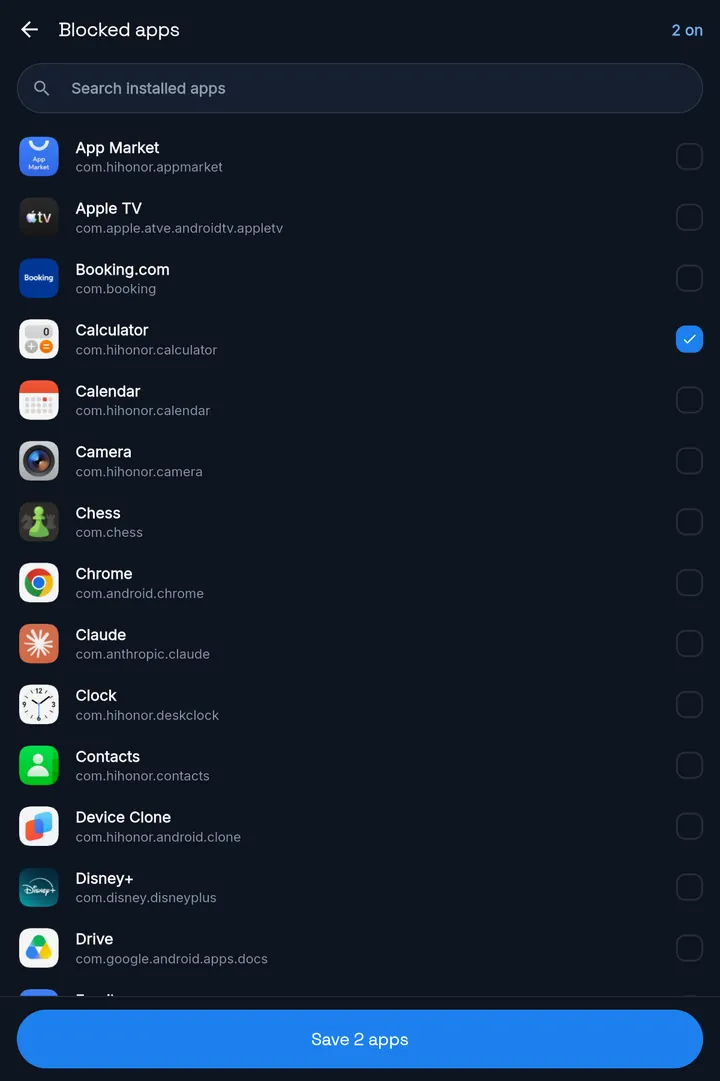
Install MassBlocker and allow the accessibility permission it asks for; that’s how it knows which app is on screen. Open Blocked apps, search for TikTok and tick it. If other video apps pull you the same way, tick them too. One lock covers them all.
Step 2: Put your QR code out of reach
Open Your unlock code and print it, or show it on another screen. Put it somewhere that takes effort, like another room. Any QR you own also works as the key. If a copy gets lost, generate a new code, and every old printout stops working.
Step 3: Set a minimum lock time
In Unlock policy, choose how long a lock lasts before your code works (the app calls it the cooldown). It starts when you lock, not when you want TikTok back. Free offers presets up to an hour. With Pro, set any length from 1 to 600 minutes. Pro
Step 4: Tap Lock now
Open TikTok during the lock and the lock screen appears instead: “Sit tight. No early way in. That's the point.” Once the ring turns green, go and scan your code. The Free plan has a daily limit on lock sessions; Pro removes it.
Schedules
Lock TikTok every night with a schedule (Free)
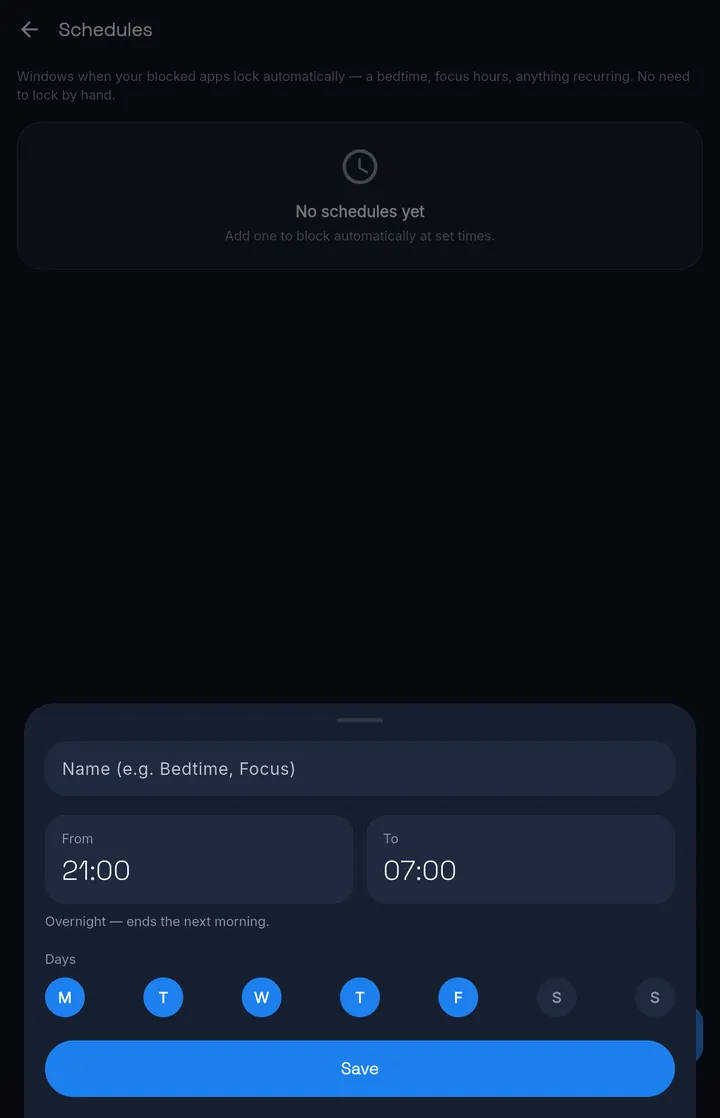
If TikTok is a late-night habit, don’t rely on remembering to lock. A schedule locks your blocked apps at the same time every night, with no need to tap Lock now.
Step 1: Open Schedules and add one
Give it a name, for example Bedtime.
Step 2: Set From and To
For example 9 pm to 7 am. An overnight window ends the next morning.
Step 3: Pick the days and tap Save
Weeknights only, or every night.
During the window, nothing on the lock screen ends it early. Your apps open again when it ends.
One gap to know about
Without strict mode, you can still edit or delete a schedule in the app. Strict mode (Pro) puts it behind a PIN.
For late nights: make the charger the key (Pro)
Pro adds keys that suit late nights. None of them is needed to block TikTok; use them if the Free setup is too easy to get around.
Your charger as the key
ProChoose the charger as your key and tap Lock now. TikTok stays locked until you plug in and tap Unlock, which ends the lock. Put the charger in another room, and getting back into TikTok means getting out of bed.
Waits for your minimum lock time? No
Auto-relock
ProAuto-relock (the app calls it Recurring cycles) is on by default with Pro and the trial, and you can turn it off. With a QR code or NFC tag as your key, it opens your apps for a usage window you choose after each unlock. Then they lock again, and the minimum lock time runs again. One quick check stays quick.
Strict mode
ProSettings and ending a session need a PIN. Give the PIN to someone you live with: whoever holds it can open your apps early.
In strict mode, the app’s own QR code and its 3-word code are switched off. Your PIN, or a QR you enrolled yourself, still works. So does an NFC tag or charger key.
The honest limit
Strict mode is a strong deterrent, not an unbreakable jail — on stock Android a determined user can disable the service.
What MassBlocker can’t do with TikTok
Here is exactly where it stops, so you know before you install.
It blocks the whole app.
TikTok locks as a whole. MassBlocker can’t block only the feed or one part of the app.
It doesn’t block websites.
If you watch TikTok in a browser, you can add your browser app to the blocklist too. The whole browser then locks with it, so only do this if you can do without the browser during your locks.
Without strict mode, settings stay open.
On Free, or on Pro with strict mode off, you can still edit your blocklist and schedules during a lock. Strict mode (Pro) puts them behind a PIN.
It can be switched off.
Strict mode is a strong deterrent, not an unbreakable jail — on stock Android a determined user can disable the service.
It’s Android-only for now.
There’s no iPhone, computer or browser version.
Android · Free on Google Play
MassBlocker, the app in this guide
MassBlocker is an Android app blocker with a real-world unlock. To open a locked app, scan a QR code you hid, after a minimum lock time you set. Pro adds NFC tag and charger unlocks. Free plan, no ads.
(opens in a new tab)No ads.
Try Pro free for 7 days — no card. Sign in to start.
See everything MassBlocker doesKeep reading
Related guides
- How to block Instagram on AndroidWhole-app blocking, and Gentle Nudge if you use it for messages.Read the guide
- A phone lock for study hours on AndroidA study-hours schedule that leaves your lecture apps open.Read the guide
- Block apps with an NFC tagProEnrol a tag, stick it out of reach, tap to unlock.Read the guide
FAQ
Questions
Can I block only the TikTok feed?
No. MassBlocker blocks whole apps, so TikTok locks as a whole. It can't block one part of an app, such as a feed.
Does it block TikTok in a browser?
No. MassBlocker doesn't block websites. You can add your browser app to the blocklist, but then the whole browser locks too, not just TikTok.
Can I lock TikTok only at night?
Yes, with a schedule (Free). Set a window such as 11 pm to 7 am and the days you want. During it, your blocked apps lock by themselves, and nothing on the lock screen ends the window early. Without strict mode you can still edit or delete the schedule; strict mode (Pro) puts it behind a PIN.
Do I need an NFC tag?
No. NFC is one Pro option. QR codes use your camera, the 3-word code (Pro) needs no camera, and charging unlocks (Pro) only need your charger.
Is there a free trial of Pro?
Yes. Try Pro free for 7 days — no card. Sign in to start, with your email and a 6-digit code. One trial per install.
Does it work on iPhone?
No. MassBlocker is Android-only for now.