
Guide · Android
Uses ProHow to block apps on Android so you can't just uninstall the blocker
The short answer
Turn on uninstall protection (Pro): Android then blocks the quick uninstall until MassBlocker's device admin is switched off. Add strict mode (Pro) so settings need a PIN, and give the PIN to someone else. A deterrent, not a jail.
 (opens in a new tab)
Free plan · no account needed · no ads
Updated 9 October 2026
Why most blockers are easy to quit
A blocker is only as strong as its easiest exit. There are two to close.
The first is the snooze. Timer-based limits, such as the Digital Wellbeing app timers on phones that include Digital Wellbeing, can be changed in Settings at any time. The decision to stop goes back to the person who just decided to keep going, at the moment it is hardest to say no.
The second is the uninstall. Even a blocker without a snooze button can be long-pressed off the home screen in a few seconds, and an uninstalled blocker blocks nothing. That one exit defeats every other feature at once.
To be straight about it: on stock Android, no app can stop the phone's owner from changing settings. What an app can do is make quitting slower and more deliberate than the urge that started it.
What uninstall protection does (Pro)
Android has a feature called Device Admin, built so workplaces could manage company phones. While an app is an active device admin, Android won't uninstall it directly: the admin has to be switched off first.
MassBlocker uses this for uninstall protection. You turn it on in MassBlocker's Unlock policy, and Android asks you to confirm in a system dialog. It then appears in your phone's list of device admin apps: a permission you gave on purpose, not one the app took.
With it on:
- The quick uninstall stops working. Android asks for the device admin to be switched off first.
- Turning protection off inside MassBlocker asks for your PIN.
- It can still be switched off in Android Settings, in the list of device admin apps (the menu name varies by phone). That takes several deliberate steps, which is the point.
Strict mode and a PIN someone else keeps (Pro)
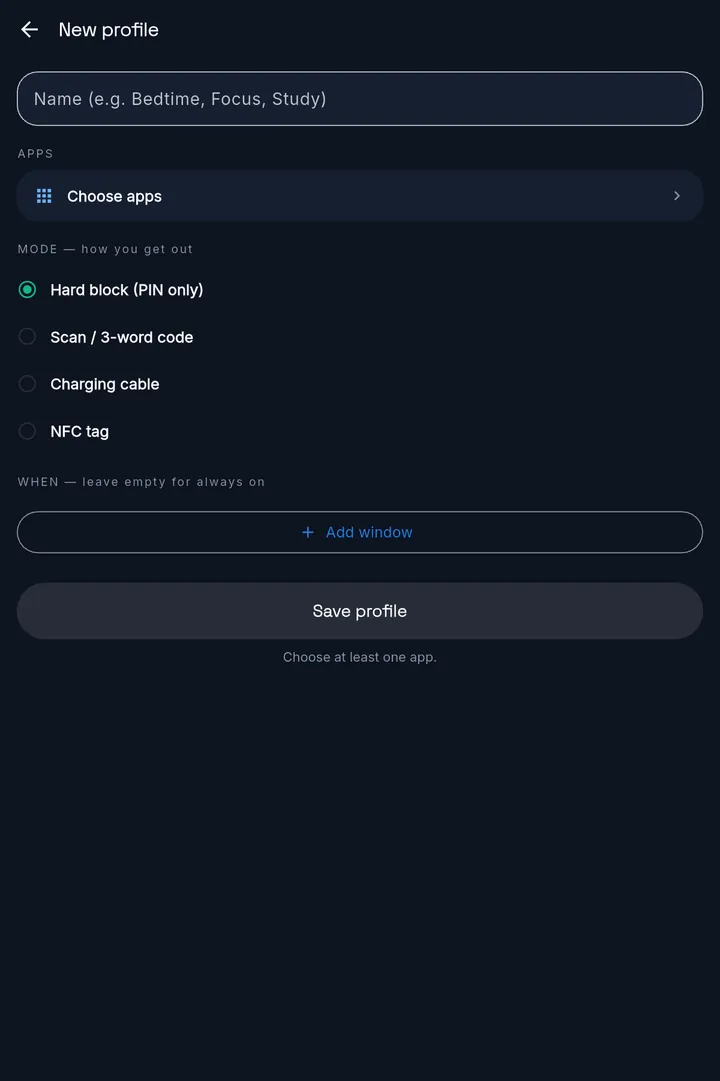
Strict mode puts MassBlocker's settings, and ending a session, behind a PIN. With it on, opening your unlock code, blocked apps, Unlock policy, schedules, profiles or Gentle Nudge settings asks for the PIN.
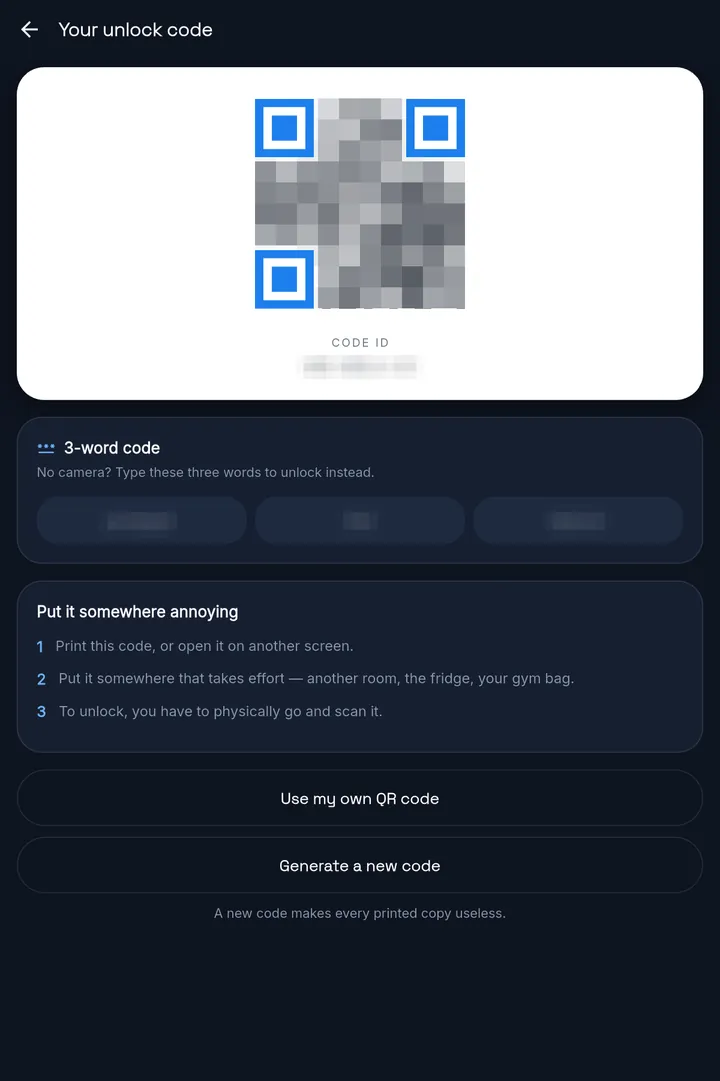
If your key is a QR code, the app's own code and its 3-word code are switched off. Your PIN, or a QR you enrolled yourself, still gets you back in. An NFC tag or charger key works as usual. For a profile that only the PIN can open, choose Hard block (PIN only).
The PIN is a key too: it opens a lock you started, straight away. If you set it and remember it, you carry the key in your head. For a firmer lock, give the PIN to a flatmate, a partner or a friend, and the lock stops being a negotiation with yourself at 1 am.
What the PIN does not cover is Android's own Settings. The accessibility service and the device admin are switched off there, outside MassBlocker.
The honest answer
Is there an app blocker you can't turn off?
Not on stock Android. MassBlocker blocks apps through Android's accessibility service, and the phone's owner can always switch that off in Settings, or remove a device admin. So MassBlocker can't promise a lock you can't turn off, and it doesn't.
What it does instead is make each exit slow and deliberate:
- The lock screen has no button to skip your minimum lock time. Free Only your PIN (Pro), if you set one, opens a lock early.
- Your key lives somewhere else: a QR code in another room (Free), or an NFC tag or your charger (Pro).
- Strict mode puts settings and ending a session behind a PIN someone else keeps. Pro
- Uninstall protection blocks the quick uninstall. Pro
- If blocking gets switched off, MassBlocker's home screen shows a banner: “Blocking is switched off”, or during a lock, “A lock is running but not enforced”. Nobody else is alerted.
The honest limit
Strict mode is a strong deterrent, not an unbreakable jail — on stock Android a determined user can disable the service.
Without strict mode, MassBlocker's own settings also stay open during a lock: you can edit your blocklist, schedules and profiles.
A minimum lock time you set in advance
When you tap Lock now, a minimum lock time starts (the app calls it the cooldown). Until it is over, a QR scan or 3-word code won't open anything, and the lock screen has no button to skip it. In the app's own words: “No early way in. That's the point.”
When the ring turns green, you've earned it: go and find your code.
- On Free, choose from presets up to an hour. With Pro, set any length from 1 to 600 minutes. Pro
- Charging unlocks (Pro) never wait: plug in, then tap Unlock. An NFC tag (Pro) skips the wait for the first unlock. With auto-relock on, each re-lock waits again.
If you've set a PIN (Pro), the lock screen also shows “Use PIN”, and whoever knows it can open your apps early. That's why we suggest someone else keeps it.
The pieces work together. The minimum lock time covers the first urge, the key you hid adds distance, and strict mode and uninstall protection slow down the ways around both.
Set it up
Step 1: Install MassBlocker and allow the accessibility permission.
It's how the app sees which app you just opened. MassBlocker takes you to the right Settings page.Step 2: Pick your blocklist.
Start with the two or three apps you lose the most time to, not everything on the phone.Step 3: Place your key.
Print your QR code or open it on another screen, and put it somewhere that takes effort to reach.Step 4: Turn on strict mode. Pro
Open Unlock policy. Under Pro controls, turn on Strict mode. It asks you to set a PIN first.Step 5: Turn on uninstall protection. Pro
In the same place, turn on Uninstall protection and confirm Android's device admin prompt.Step 6: Decide who keeps the PIN. Pro
Whoever knows it can open a lock you started. A flatmate, a partner or a friend makes the lock firmer.
Steps 4 to 6 need Pro
Try Pro free for 7 days — no card. Sign in to start.
New to blocking? Start with how to block apps on Android.
FAQ
Questions
Can I remove it if I forget the PIN?
Yes. Uninstall protection is a deterrent, not a lock on your phone. Switch off MassBlocker's device admin in Android Settings (in the list of device admin apps; the menu name varies by phone), and then you can uninstall it. It takes several deliberate steps, which is the point.
What stops me uninstalling it during a lock?
On the Free plan, nothing: you can uninstall it, and an uninstalled blocker blocks nothing. With Pro, uninstall protection blocks the quick uninstall, and turning it off inside MassBlocker needs your PIN. It can still be switched off in Android Settings. Strict mode is a strong deterrent, not an unbreakable jail — on stock Android a determined user can disable the service.
Is there an app blocker you can't turn off?
Not on stock Android. The phone's owner can always switch off an accessibility service, or a device admin, in Settings. MassBlocker makes that slower and more deliberate with strict mode, a PIN someone else keeps and uninstall protection (Pro), and shows a banner on its home screen if blocking is switched off. Strict mode is a strong deterrent, not an unbreakable jail — on stock Android a determined user can disable the service.
Can I change my settings during a lock?
Without strict mode, yes. You can edit your blocklist, schedules and profiles during a lock, and on Pro, changing the unlock method ends the lock. Strict mode (Pro) puts settings and ending a session behind a PIN, so give the PIN to someone you trust.
Does it work without root?
Yes. MassBlocker uses standard Android features: the accessibility service to see which app came to the foreground, and Device Admin for uninstall protection (Pro). No root, no custom ROM and no ADB commands are needed.
Is the accessibility permission safe to give?
The permission is broad, so what matters is what an app does with it. MassBlocker uses it only to see which app is in the foreground so it knows whether to block it. It never reads screen content, keystrokes, or what you do inside other apps. Accessibility data stays on your device and is never collected, shared, or sold.
Android · Free on Google Play
MassBlocker, the app in this guide
MassBlocker locks the apps you choose behind a key you hide and a minimum lock time you set. Strict mode and uninstall protection (Pro) slow down the exits described above.
(opens in a new tab)No ads.
Try Pro free for 7 days — no card. Sign in to start.
See everything MassBlocker doesKeep reading
Related guides
- How to block apps on AndroidThe full setup, from the permission to every way back in.Read the guide
- Block apps with an NFC tagProA key you have to walk to: enrol a tag, stick it out of reach, tap to unlock.Read the guide
- A household phone curfew everyone agrees toAn evening schedule the household agrees on.Read the guide