
Guide · Android
How to set a household phone curfew on Android
The short answer
Agree on the hours and the apps first. Then, on each phone, set an overnight schedule (Free) that locks only those apps until morning. Strict mode (Pro) puts the settings behind a PIN that someone else holds.
 (opens in a new tab)
Free plan · no account needed · no ads
A curfew everyone agreed to
This guide is for adults who share a home and want the same phone rules at night: partners, flatmates, grown-up siblings, older family members. It works when everyone has agreed to the curfew.
MassBlocker locks apps. It has no location tracking, no message reading, no browsing history and no screen-time reports. If someone hasn’t agreed to the curfew, this is the wrong tool.
Why curfews break
A phone curfew is easy to agree on and hard to keep. It breaks in three predictable ways.
- It gets extended, because the tool offers more time to whoever is holding the phone.
- It gets switched off, because the setting that runs it is on the same phone as the person it applies to.
- The app gets deleted, which takes a few seconds.
A schedule on the Free plan deals with the first: nothing on its lock screen adds more time. Strict mode and uninstall protection (Pro) make the other two slower. None of them make the curfew impossible to break, and the steps below say where each one stops.
Step 1: Agree on the rules
Talk it through before anyone touches a phone. Agree on:
Step 1: Which apps lock.
For example feeds, short video and games.Step 2: Which hours.
For example 11 pm to 7 am.Step 3: Which nights.
Weeknights only, or every night.Step 4: What stays open.
Calls, messages, the alarm clock and maps.Step 5: Who holds each PIN. Pro
Only if you use strict mode.Step 6: What happens when someone needs a locked app during the curfew.
Write the rules down where everyone can see them.
Step 2: Set an overnight schedule on each phone (Free)
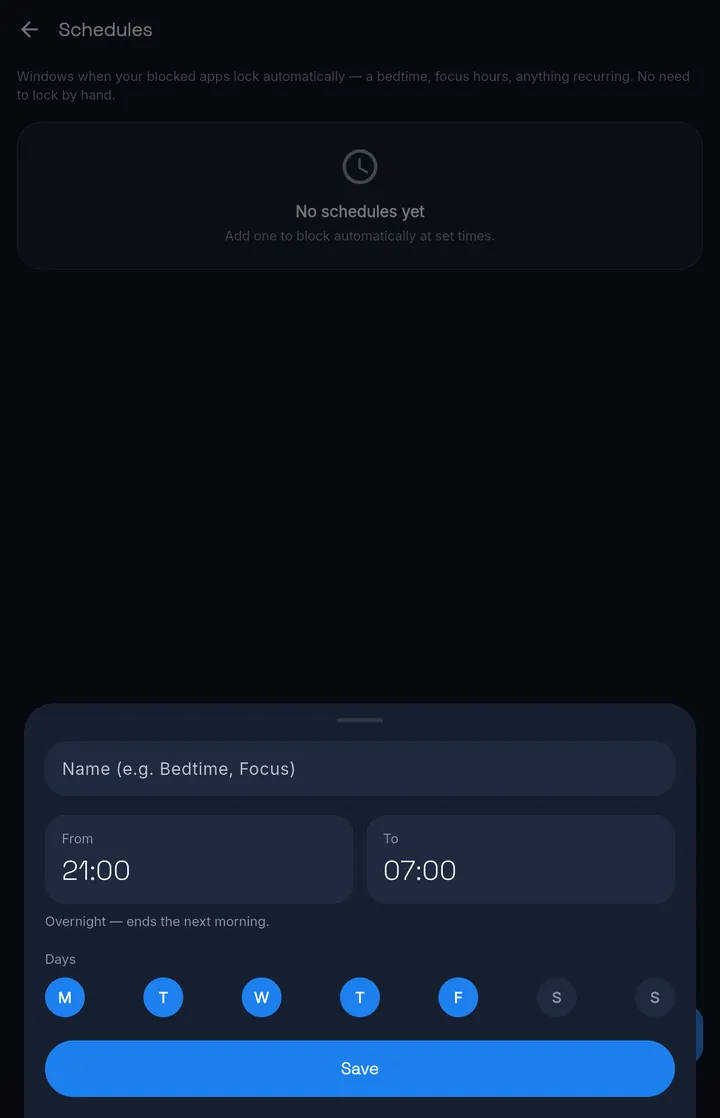
A schedule is a window when your blocked apps lock automatically. Nobody has to remember to start it.
On each phone, open Schedules, name the window, set the times and pick the days. A window like 11 pm to 7 am runs past midnight and ends the next morning.
Nothing on the lock screen ends a schedule window early. The apps open again when the window ends.
Each person sets the same schedule on their own phone, or you set the phones up together. Schedules are free, so every phone in the house can run the curfew on the Free plan.
A stricter list at night?Pro
Use profiles: each has its own apps, hours and way to unlock. Free gets 1 profile, which unlocks with a scan. More profiles, and the Hard block mode (PIN only), need Pro.
Step 3: Make it harder to undo (Pro)
Without strict mode, anyone holding the phone can open MassBlocker and edit the schedule or the blocklist, even during the curfew. Two Pro tools change that.
Strict mode
ProMassBlocker’s settings, and ending a session, need a PIN. Each person sets a PIN and gives it to someone else in the household. Whoever holds it can change that phone’s settings, so agree on when that’s OK.
Uninstall protection
ProBlocks the quick uninstall. Turning it off inside MassBlocker needs the PIN. It can still be switched off in Android Settings.
The honest limit
Strict mode is a strong deterrent, not an unbreakable jail — on stock Android a determined user can disable the service.
If someone switches blocking off, only their own phone shows a warning, on the MassBlocker home screen. Nobody else is alerted. That’s why a curfew works best when everyone agreed to it.
Step 4: Leave calls and essentials open
Blocking everything is the fastest way to lose the argument. At night the phone is also the alarm clock and the way people reach each other.
Only the apps on the blocklist lock, so leave calls, messages, the clock and maps off it. Being able to say “the phone still works, only the feeds are closed” is worth more than the extra strictness you give up.
Optional: one plan for the household (Family)
You don’t need a paid plan for a curfew. If several people want Pro tools like strict mode, one Family plan gives up to 5 people the whole of Pro on their own Android phones.
- Invite people by QR code or invite code. One person pays.
- Whoever runs the group can leave a short note on each person’s lock screen: one line, up to 120 characters, no links.
- The master unlock code goes through each person’s own Scan unlock, so it only works when their lock screen offers Scan. Schedule windows, NFC and charger locks don’t, and nor does strict mode without their own QR code.
- Whoever runs the group sees who is in it, the note they set for each person, and simple lock counts: locks started and locks today. Never screen time, app usage, location or messages. There is no browsing history either.
Android · Free on Google Play
MassBlocker, the app in this guide
MassBlocker runs the curfew: overnight schedules on the Free plan, strict mode and uninstall protection on Pro, and a Family plan for up to 5 people.
(opens in a new tab)No ads.
Try Pro free for 7 days — no card. Sign in to start.
See everything MassBlocker doesKeep reading
Related guides
FAQ
Questions
Can someone just delete the app?
On Pro, uninstall protection blocks the quick uninstall, and turning it off inside MassBlocker needs the PIN. It can still be switched off in Android Settings. Strict mode is a strong deterrent, not an unbreakable jail — on stock Android a determined user can disable the service.
Will it block phone calls?
No. Only the apps on the blocklist lock. Leave calls, messages, the alarm clock and maps off the list and they keep working.
Can each person have different rules?
Yes. Each phone has its own blocklist, schedules and unlock method, and each is set up on that phone.
Does everyone need an account?
Not for the curfew itself. The Free plan needs no account, and schedules are free. Joining a Family group means signing in with an email address and a 6-digit code.
Is this a parental-control app?
No. MassBlocker locks the apps people chose, at the hours they agreed. It has no location tracking, no message reading, no browsing history and no screen-time reports. It works best in a household where everyone has agreed to the curfew.
We share one phone. What then?
A lock covers the whole phone, for everyone who uses it. Set a schedule (Free) for the hours you agreed, and the phone works as normal outside them.